Clips Manager
Clips Manager is the library panel that lists every Steam Game Recording clip Steempeg found in your clip folders. Each clip is a ClipCard. Clicking a card opens the clip in the player and loads it into the render settings.
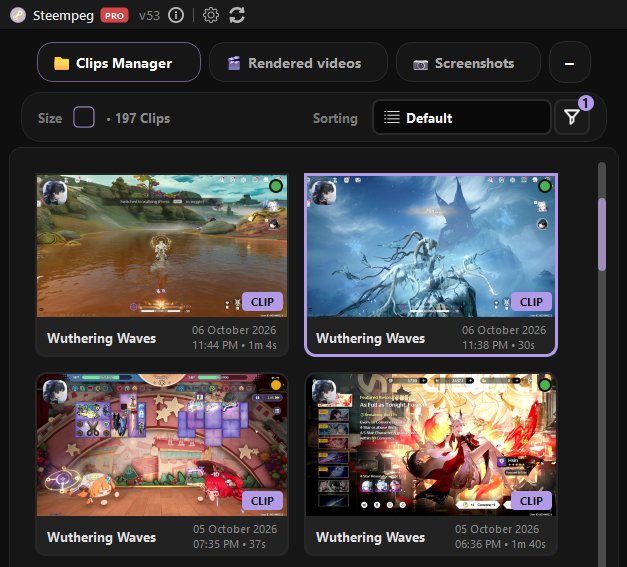
Panel layout
| Area | What is there |
|---|---|
| Tab | 📁 Clips Manager (shortens to 📁 Clips in narrow windows). Tabs can be dragged to reorder; hover a tab for its × close button; + adds or removes library panels. |
| Toolbar | Size button, clip count (• 253 Clips, or • … Clips while scanning), Sorting dropdown, Filters funnel. |
| Cards | The grid of ClipCards. |
| Footer | 📂 Choose Folder… with +, and 🔄 Refresh with ▾. |
What a ClipCard shows
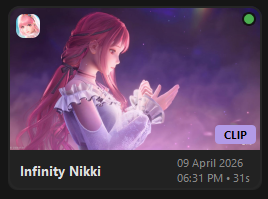
| Part | Where | Meaning |
|---|---|---|
| Thumbnail | Top of the card | A frame from the clip. While it is being generated the card is dimmed; it lights up when the poster arrives. |
| Game icon | Top-left corner | The game the clip was recorded in. Unknown games get a round placeholder icon. |
| Health dot | Top-right corner | Clip health at a glance — see Clip health. |
| Type badge | Bottom-right corner | Lavender badge: CLIP, BG (background recording) or FG. |
| Queue number | Bottom-left corner | Shown only while the clip is in the Render Queue: the job's position, coloured by job status. If the same clip is queued several times, the number cycles through each job. |
| Footer | Under the thumbnail | Game name, date, time and duration. Layout depends on card size. |
A dimmed card means either the thumbnail is not ready yet, or the clip is Dead (see Clip health).
After you click a card, a spinner with a percentage appears over its thumbnail until the clip is loaded in the player.
Card styles
Settings → Visual → Library cards → ClipCard style
| Style | Look |
|---|---|
| SteempegUI (default) | Top and bottom overlay rows sit flush with the card edges. |
| Square | Square top, rounded bottom. |
| Round | Rounded everywhere. |
Game icon corners have their own setting: Settings → Visual → Game icons → Corner shape — Square, Soft (Steam-like, default) or Circle.
Card sizes
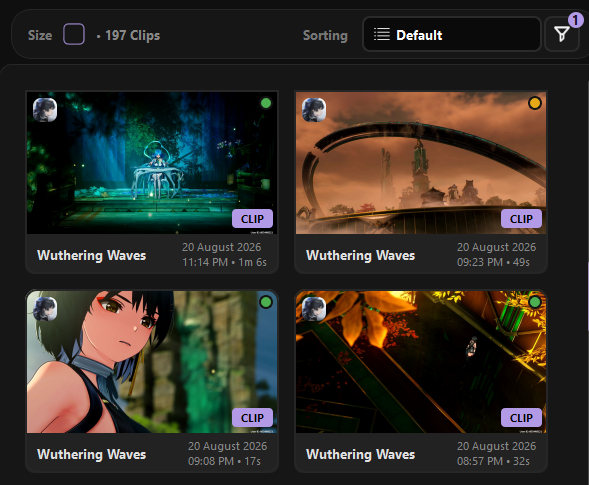
Click the Size button in the toolbar and pick a tile.
| Size | Card | Footer |
|---|---|---|
| Big (default) | 254 × 184 | Game name on the left; date on the right with time • duration under it. |
| Medium | 168 × 136 | Game name, then date · time · duration on one line (hover for the full text). |
| Small | 128 × 108 | Game name and an i glyph; hover it for the date, time and duration. |
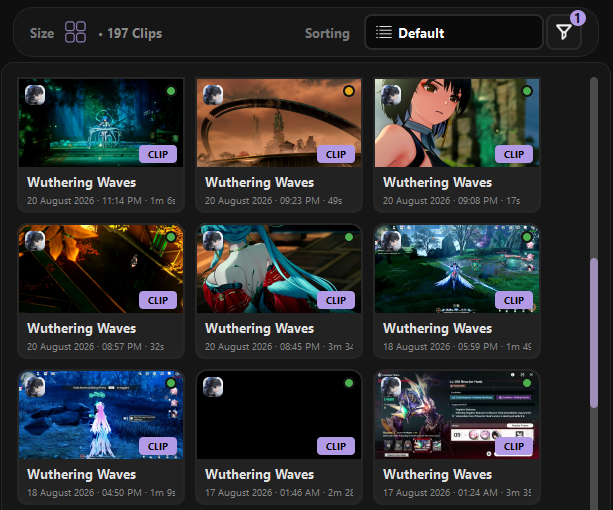
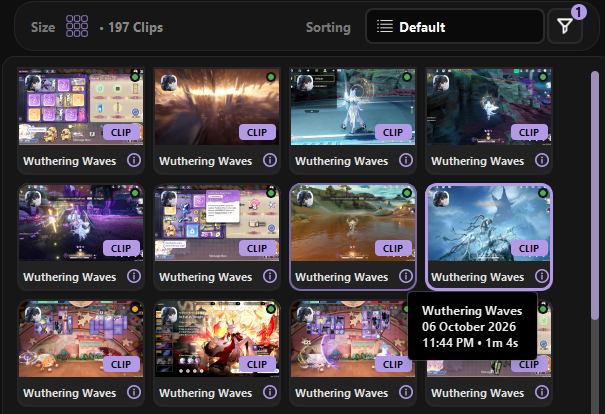
Small cards: peek at the full thumbnail
On Small cards, rest the cursor on the thumbnail for 2 seconds — the icon, badges and health dot fade out so you can see the whole frame. They come back when the cursor leaves.
Classic list view
Prefer a table? Turn on Settings → Advanced → Library → Restore classic List view. A fourth tile, List, appears in the Size popup. The list has the columns Game Name, Type, Date and Duration. Use Sorting to order it — clicking the column headers does not sort.
Selecting clips
| Action | Result |
|---|---|
| Click | Selects the card (purple border) and opens the clip in the player and render settings. Clicking the clip that is already open does nothing. |
| Ctrl + click / Alt + click | Adds or removes the card from the selection. Does not open anything. |
| Shift + click | Selects every visible card between the last plain click and this one. |
| Click on empty space | Keeps the current selection. |
| Right-click | Opens the context menu for the card(s) — never changes the selection. |
Multi-selection is what the context menu acts on: add several clips to the queue, open their folders, or delete them at once.
Note
While a library scan is running, the grid, Sorting and Filters are locked
(Wait until library finishes loading…). They unlock as soon as the scan
ends.
Right-click menu
| Item | What it does |
|---|---|
| 📋 Add to queue / Add to queue (N) | Adds the clip(s) to the Render Queue. Dead clips that are not Cured are skipped — the tooltip warns about it. |
| 📂 Open in folder | Opens Explorer with the clip folder selected (one window per parent folder for several clips). |
| 🗑️ Delete Clip / Delete Clips (N) | Deletes the clip folder(s) permanently, after a confirmation (can be turned off in Settings → Advanced → Safety). |
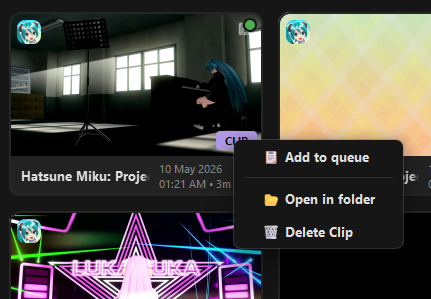
Bulk cleanup
For rule-based cleanup (by size, age, health, game…) with Recycle Bin support, use Smart Deletor in the Render Queue panel instead of deleting card by card.
Sorting
The Sorting dropdown:
| Option | Order |
|---|---|
| Default | Newest recording first. |
| Game Name (A - Z / Z - A) | Alphabetical by game. |
| Type (A - Z / Z - A) | Clip / BG / FG. |
| Bad health first | Dead → Issues → Cured → Healthy. |
| Good health first | The reverse. |
| Date (Oldest / Newest First) | By recording date. |
| Duration (Shortest / Longest) | By clip length. |
| Folder (A - Z / Z - A) | By folder. |
Filters
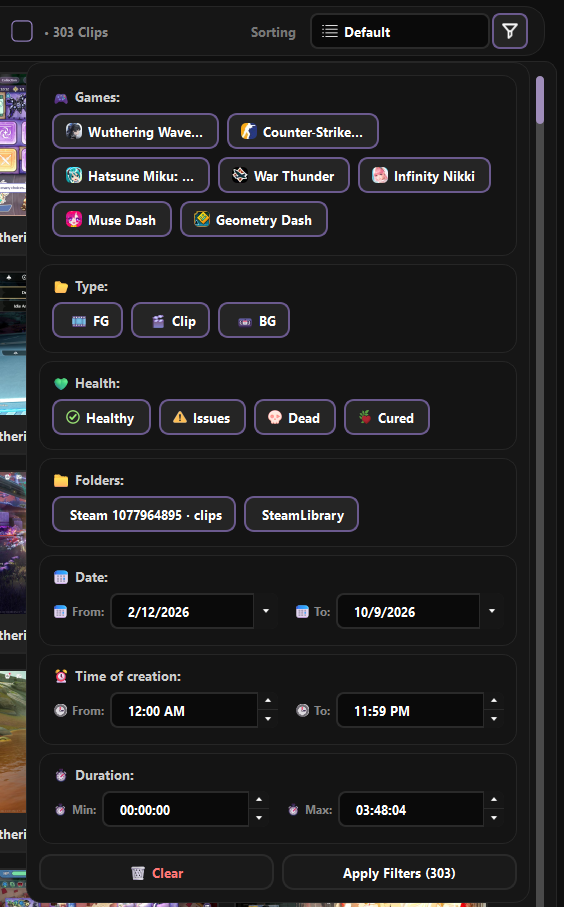
The funnel button opens the filter popup. A small badge on the funnel shows how many filters are active.
| Section | Filters by |
|---|---|
| 🎮 Games | One chip per game. |
| 📂 Type | Clip / BG / FG. |
| 💚 Health | Healthy / Issues / Dead / Cured (Cured appears once at least one clip is cured). |
| 📁 Folders | One chip per library folder. |
| 📅 Date | From / To dates. |
| ⏰ Time of creation | From / To time of day. |
| ⏱ Duration | Min / Max length. |
All chips start on. Hold the left mouse button and drag across chips to switch a whole row on or off in one stroke. Apply Filters (N) shows how many clips match before you apply; 🗑 Clear resets everything.
Folders and refresh
📂 Choose Folder… and +
Choose Folder… sets your main clips folder — the folder that contains
the clip_* folders, not a single clip. The + button opens
Library folders:
- the main folder is marked ★ and can be replaced without losing the others;
- every folder has a remove button; missing ones say (Folder not found on disk);
- 🔍 Discover Steam folders… finds Steam recording folders for you;
- ➕ Add another folder… adds more roots; 🧹 Clear list empties it.
🔄 Refresh and ▾
Refresh rescans Clips Manager, Rendered videos and Screenshots. The ▾
menu has narrower actions:
| Item | Does |
|---|---|
| 🔄 Refresh Clips Manager | Rescans only the clip folders. |
| 🖼️ Refresh game icons from Steam… | Re-downloads game icons. |
| 🏷️ Refresh game names from Steam… | Re-resolves game names. |
| 🩺 Re-check clip health (ffprobe)… | Full health pass on every clip, ignoring the cache — see Clip health. |
Startup modes and what cards show
Settings → Performance → Library startup → On launch
| Mode | What you see |
|---|---|
| Progressive, load as you scroll (default) | Cards build as they scroll into view. Durations may fill in a moment later. |
| Quick, folders + cached health | Rescans folders, reuses cached health. |
| Full, first launch / new folder | Full health check and Steam icon / name refresh on every launch. Slowest, most thorough. |
| Skip, last session list | Shows last session's list instantly from cache; new folders are added quietly afterwards. |
In every mode, missing thumbnails are generated in the background and pop into the cards as they finish. Refresh always runs a full scan.
Next
- Clip health — what the health dot means
- Repair & salvage — what happens to broken and Dead clips